How to install CastLoom Pro on macOS
Follow the steps below and you'll be up and running in a few minutes.
CastLoom Pro isn't on the App Store, so the first time you open it, macOS may say it's "damaged" or can't be opened. Don't worry — the app is fine. Just follow the steps below to clear the security block.
Step 1: Download CastLoom Pro
Choose the installer that matches your Mac chip:
Step 2: Install into Applications
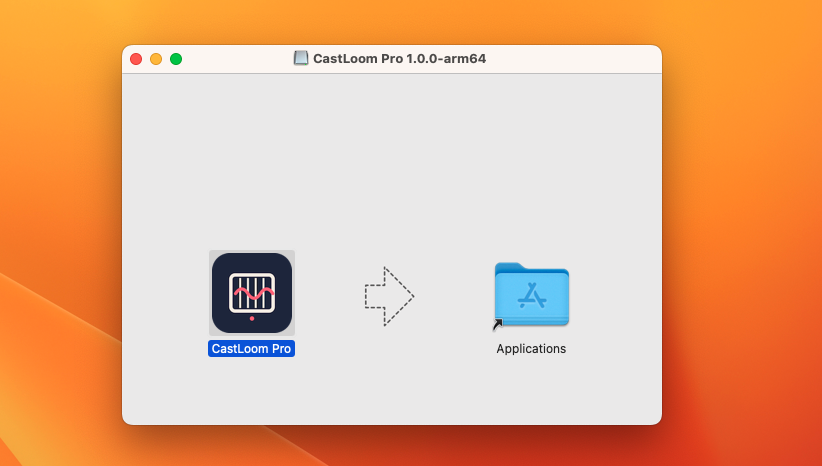
When the download finishes, open the DMG. You'll see the CastLoom Pro icon. Drag it to the Applications folder on the right (as shown in the arrow). That's the install.
Step 3: First open — you may see "damaged"
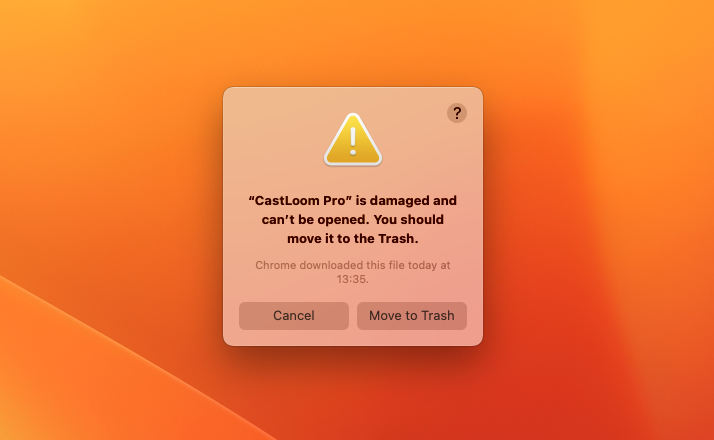
Open CastLoom Pro from Applications (double-click). macOS might show: «"CastLoom Pro" is damaged and can't be opened. You should move it to the Trash.» This is a security message for apps not from the App Store. Don't move it to the Trash. Go to the next step.
Step 4: Remove the block in Terminal
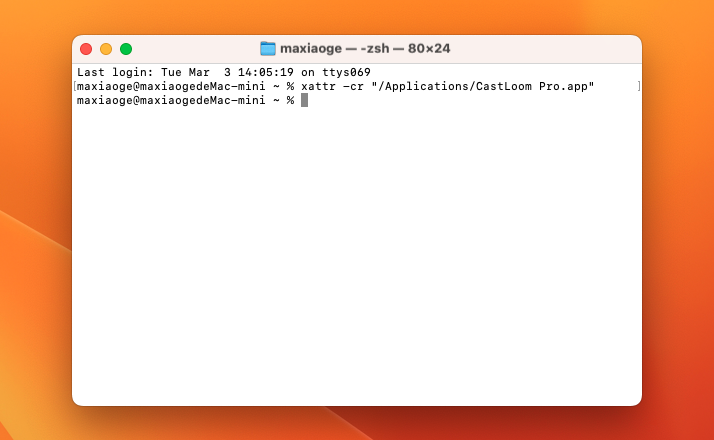
Open the Terminal app (Applications → Utilities, or search "Terminal" in Spotlight). In Terminal, paste this command and press Enter:
After it runs, go back to Applications and double-click CastLoom Pro again. It should open normally.
If you see "No such file", the app isn't in Applications. Type xattr -cr (with a space at the end), then drag the CastLoom Pro icon from Finder into the Terminal window. The path will be filled in. Press Enter.
If it still won't open after these steps, email us at [email protected] and we'll help you fix it.